Guide
How HUBBUB works
HUBBUB has four areas around your page.
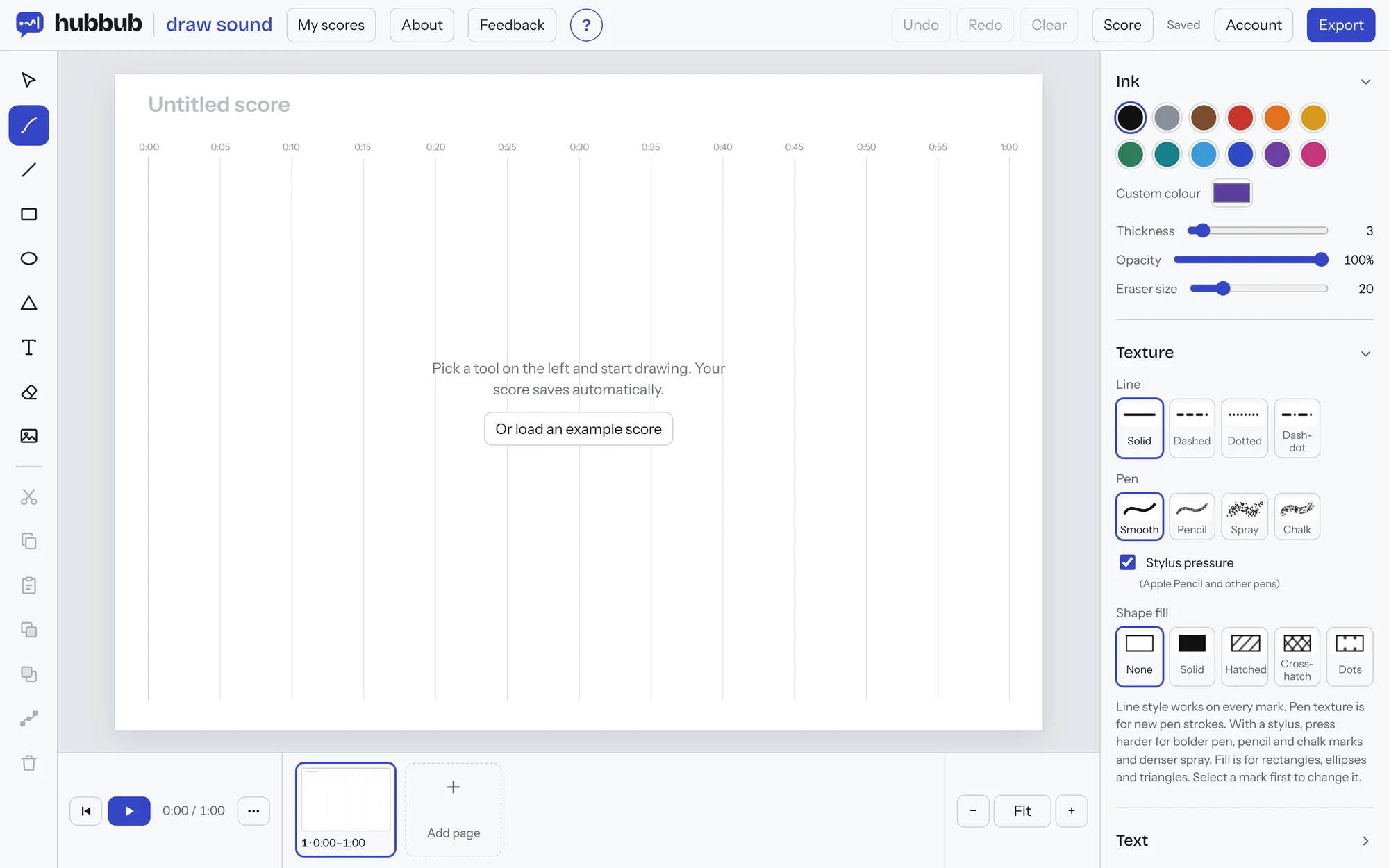
The left-hand toolbar
Draw.

SelectV
Click a mark to select it, then drag to move it or drag a corner to resize it. Drag across empty space to select several marks. Select a pen stroke and drag the at its end to carry it on. With a stylus, press harder to thicken the new part.
PenP
Draw freehand. With an Apple Pencil or stylus, press harder for bolder marks.
LineL
Click and drag to draw a straight line.
Rectangle, Ellipse, TriangleREA
Click and drag to draw a shape. Drag upwards to point a triangle down.
TextT
Click anywhere on the page and type.
EraserX
Drag across a mark to rub out just that part.
ImageI
Add a photo, scan or drawing. You can also drag image files straight onto the page.
Editing buttons
These work on whatever you've selected.
Cut, Copy and Paste
Move or repeat marks, even onto another page.
Bring to front, Send to back
Choose which marks sit on top when they overlap.
Edit points
Bend the sides of a shape, line or pen stroke into curves. You can also double-click the mark.
Delete
Remove the selected marks.
The right-hand panel
Style and set up.
Click any heading in the panel to fold that section away, and click it again to bring it back. HUBBUB remembers your choice. Text and Performance notes start folded, and Text opens by itself when you pick the Text tool.
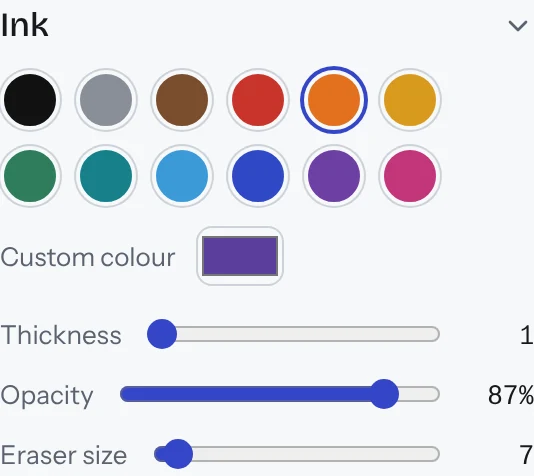
Ink
Pick one of twelve colours or any colour you like, then set the thickness and opacity. Eraser size is here too.
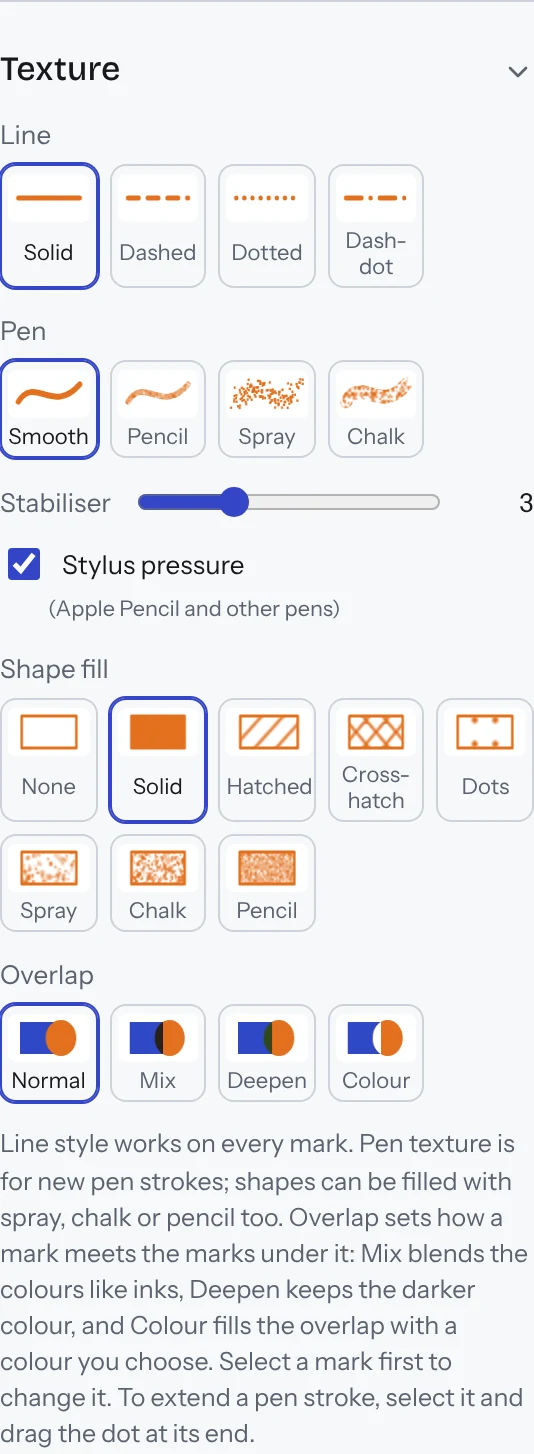
Texture
Choose a line style (solid, dashed, dotted or dash-dot), a pen texture (smooth, pencil, spray or chalk) and a fill for shapes, from solid and hatched to spray, chalk and pencil. A textured fill gives the outline the same texture.
Stabiliser smooths wobbles as you draw. Turn it up for long, flowing lines.
Overlap sets what happens where marks cross: Mix blends the colours like inks, Deepen keeps the darker colour, and Colour fills the overlap with any colour you pick, so two black squares can meet in white, or a red one.
To change a mark you've already drawn, select it first.
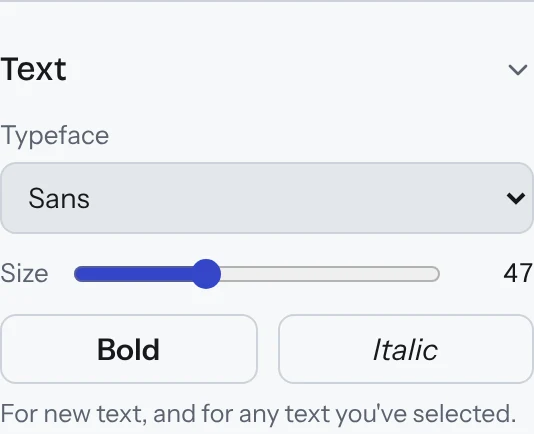
Text
Choose a typeface, size, bold or italic for new text, or for text you've selected.
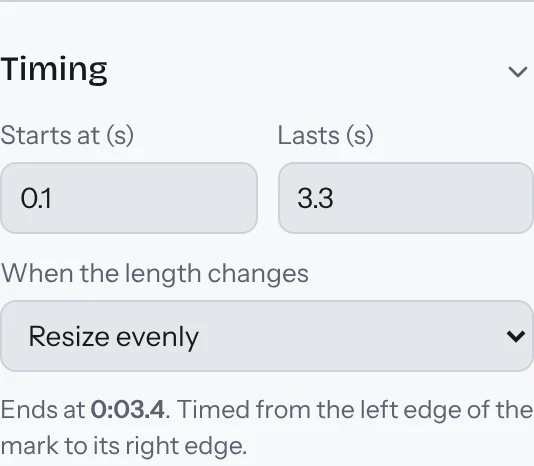
Timing
Select a mark to see exactly when it starts and how long it lasts, in seconds. Type new numbers to move or stretch it.
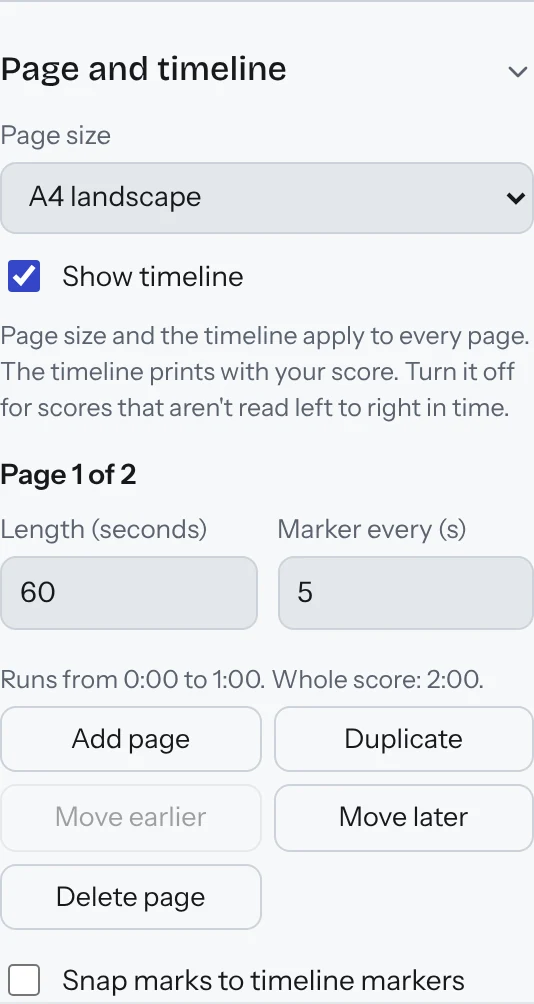
Page and timeline
Choose the page size, how many seconds each page lasts and how often the time markers appear. Add, duplicate, reorder or delete pages. Switch on Snap marks to timeline markers to line things up neatly.
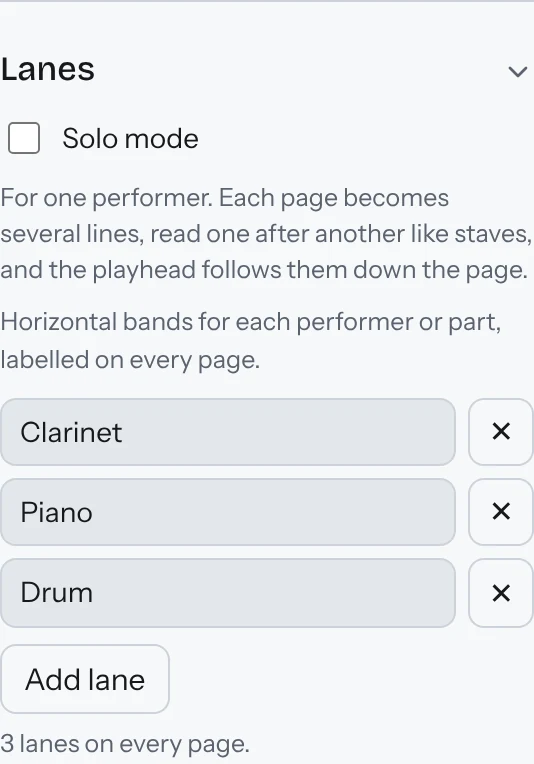
Lanes
Add a labelled band for each performer or part, such as Clarinet, Piano or Drum. Each lane becomes its own part when you export.
Solo mode is for one performer. Each page becomes two to six lines, read one after another like staves, and the playhead follows them down the page. Choose how many with Lines per page.
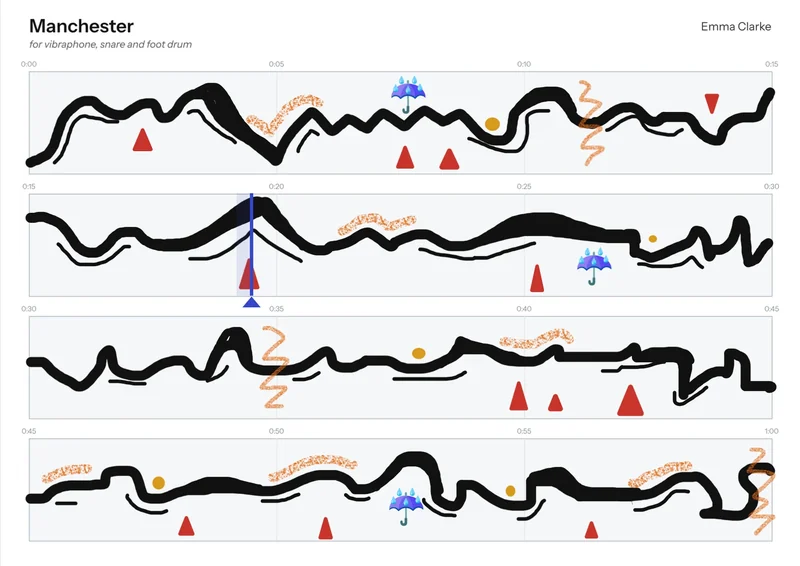
Solo mode in action
Here is Manchester, a one-minute solo on a single page of four lines. The playhead runs along each line in turn. Open it in HUBBUB.
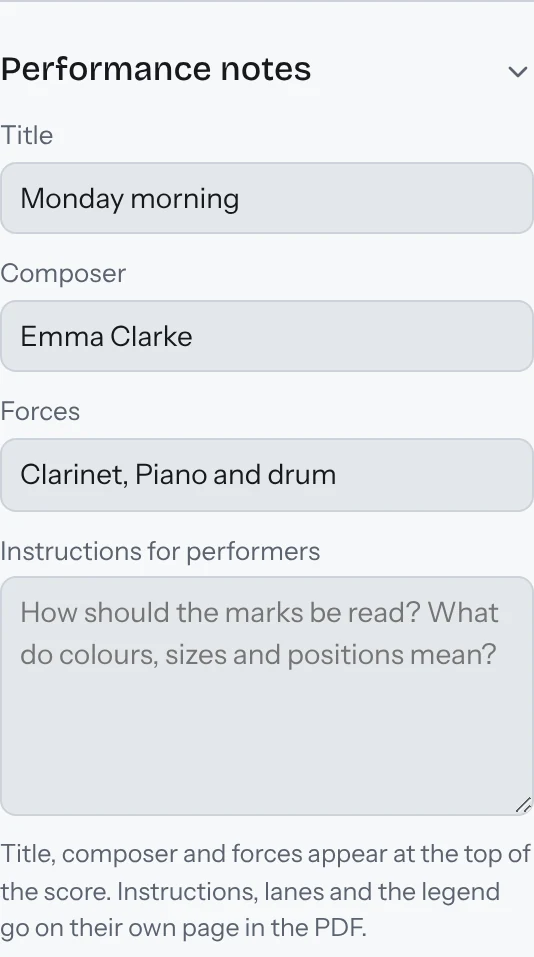
Performance notes
Add a title, composer and instrumentation, plus instructions telling performers how to read your score.
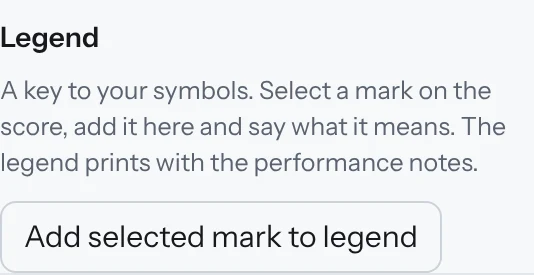
Legend
Select a mark, add it to the legend and say what it means. The legend prints with your score.
The bottom bar
Play, pages and zoom.

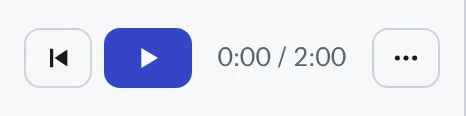
Play and Back to start
Play Space watches a playhead move through your score in real time, turning the pages as it goes. Press again to pause.
Back to start Home returns the playhead to 0:00.
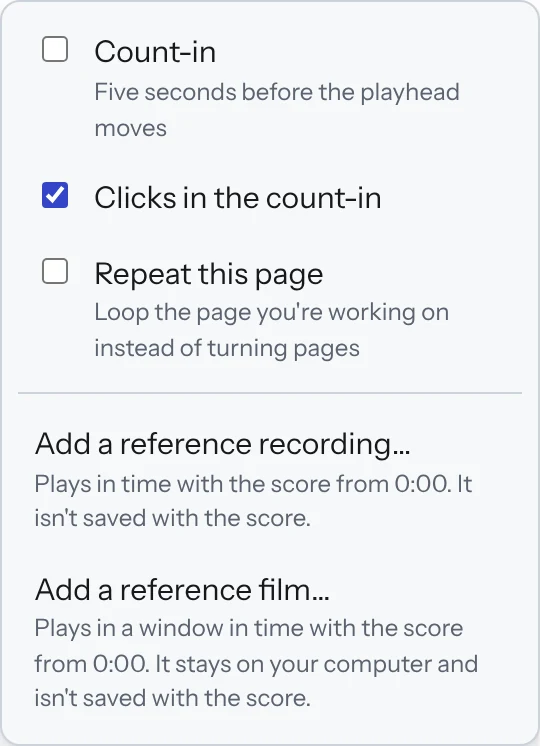
Playback options (…)
- Count-in: five seconds before the playhead moves, with clicks if you want them.
- Repeat this page: loop the page you're working on.
- Reference recording or film: play a recording or film in time with your score. A film opens in its own window, where Grab frame puts the current frame onto your score.
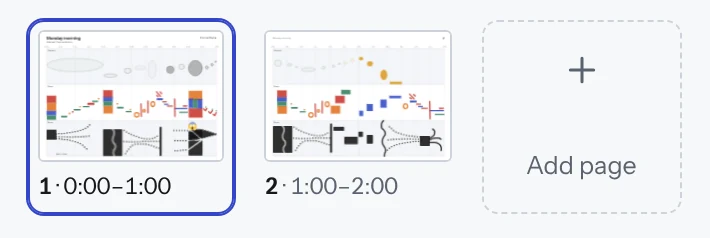
Page thumbnails
Click a page to go to it. Each one shows the stretch of time it covers. Click Add page for a new one.
Zoom
Zoom in for detail, or click Fit to see the whole page.
The top bar
Save, share and export.

My scores
See all your scores. Open, rename, duplicate, download, share or delete them. Your work saves automatically as you go.
About, Feedback and Help
Find out more, or tell me about a bug or an idea. Click ? at any time to open this guide in a new tab.
Undo, Redo and Clear
Step backwards and forwards through your changes. Clear removes everything on the current page, and Undo brings it back.
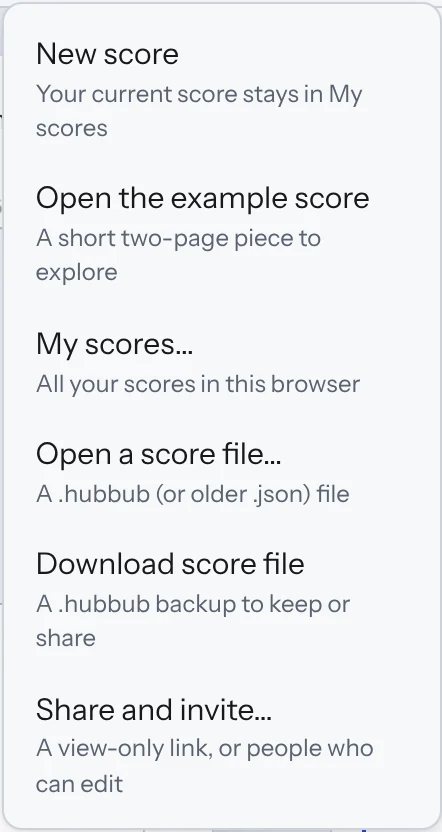
Score menu
- New score: start afresh.
- Open the example score: open Monday morning.
- Open a score file: open a .hubbub file someone has sent you.
- Download score file: save a backup.
- Share and invite: send a view-only link, or invite people to edit with you.
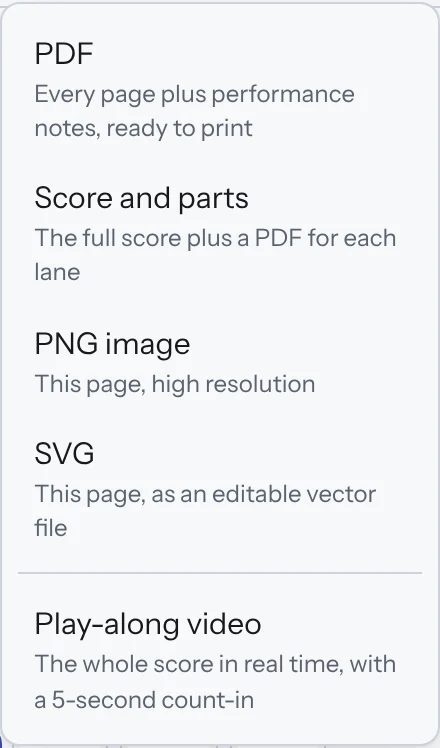
Export
- PDF: your full score with performance notes.
- Score and parts: the full score plus a PDF for each lane.
- PNG or SVG: a picture of the current page.
- Play-along video: an HD video with a count-in and moving playhead for rehearsals.
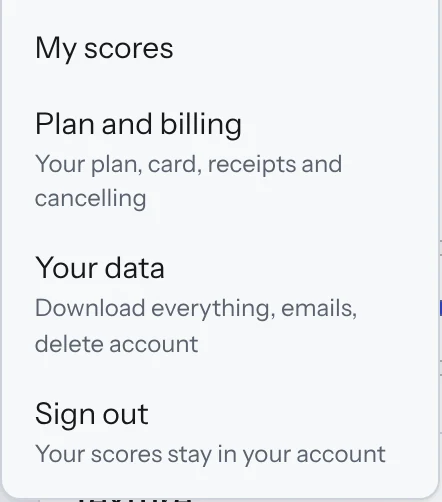
Account
Your plan and billing, your data, and signing out.
Shortcuts
Handy keys.
- ?Open this guide
- SpacePlay or pause
- HomeBack to the start
- EscStop drawing and go back to Select
- Ctrl/CmdZUndo (add Shift to redo)
- Ctrl/CmdCCopy (X to cut, V to paste)
- ←→↑↓Nudge a selected mark (hold Shift for bigger steps)
- Page UpPage DownPrevious or next page
- +−0Zoom in, zoom out, fit the page